TrunkView has native support for actions like muting and unmuting the audio source.
However, from Windows Vista on, the audio mixer API was significantly changed, and TrunkView will not mute/unmute correctly with these Operating Systems.
Now there is an option to use AutoHotkey macros to perform the muting and unmuting of the audio source.
For this, you need to install AutoHotkey (a free program), and define two macros: one to mute, and one to unmute.
Both macros have to be configured to work within AutoHotkey. Once they work, TrunkView will emulate the (macro) keystrokes from within the program.
(These macros will not work with Windows XP or below.)
Macros
^#m::
VA_SetMute(True,2,"playback:2")
return
^#u::
VA_SetMute(False,2,"playback:2")
return
Quite simple. ;)
The first macro says: at pressing Ctrl-Win-m mute the audio source.
The second: at pressing Ctrl-Win-u unmute the audio source.
AutoHotkey installation
Download 'Installer for AutoHotkey_L' from http://www.autohotkey.com/download (you do need the _L version), and install with default settings.
Download VA21.zip and place the va.ahk file in the \Program Files\AutoHotkey\Lib folder. (Create the Lib folder, if it does not exist).
Best is to place a shortcut to Autohotkey in the Startup folder. The program will be loaded when Windows starts and it will load the default Autohotkey.ahk script file.
This file should contain the two macros. (Right click the Autohotkey icon to edit and reload the script file.)
Macro configuration
All you have to find, is the playback device number (third parameter - ("playback:2" in above macros)), and the subunit number (second parameter - (,2, in above macros)).
The playback device is the sound card your scanner is connected to.
To find it, run the following AutoHotkey script: (copy text and save to devicelist.ahk, next double click the devicelist.ahk file)
while dev := VA_GetDevice("playback:" A_Index) {
device_list .= "playback:" A_Index "=" VA_GetDeviceName(dev) "`n"
%Release%(dev)
}
MsgBox %device_list%
device_list .= "playback:" A_Index "=" VA_GetDeviceName(dev) "`n"
%Release%(dev)
}
MsgBox %device_list%
The output will look like this:
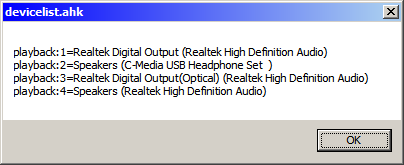
In our case, the scanner is connected to the Microphone input of the 'C-Media USB Headphone Set', so the third parameter of VA_Setmute is "playback:2" (double quotes included). The sound card(s) in your system, will be different.
Now for the subunit (of the playback device):
Right click the speaker icon (system tray), and select Playback devices.
Select the device your scanner is connected to, and click Properties.
Go to the Levels tab.
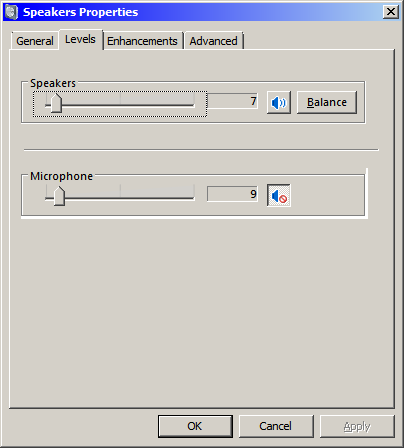 Levels tab
Here you see the subunits. There should be at least two: a Speakers unit, and a Microphone (or Line in) unit.
The first unit will be Speakers.
If the second unit is Microphone (i.e. the audio input), the second parameter of VA_SetMute is 2.
Edit your AutoHotkey script, and reload it.
Now try the keyboard shortcuts to see if they work correctly. (Ctrl-Win-m to Mute audio, Ctrl-Win-u to Unmute audio)
TrunkView setting
Once configured, you can start the latest trunkview.exe, and go to Settings->Sound device tab.
Tick 'Use AHK macros', and click Close.
With function key F5, you can toggle the MPT1327 sound on and off.
If this works, you're finished, wait for the first Voice call to arrive...